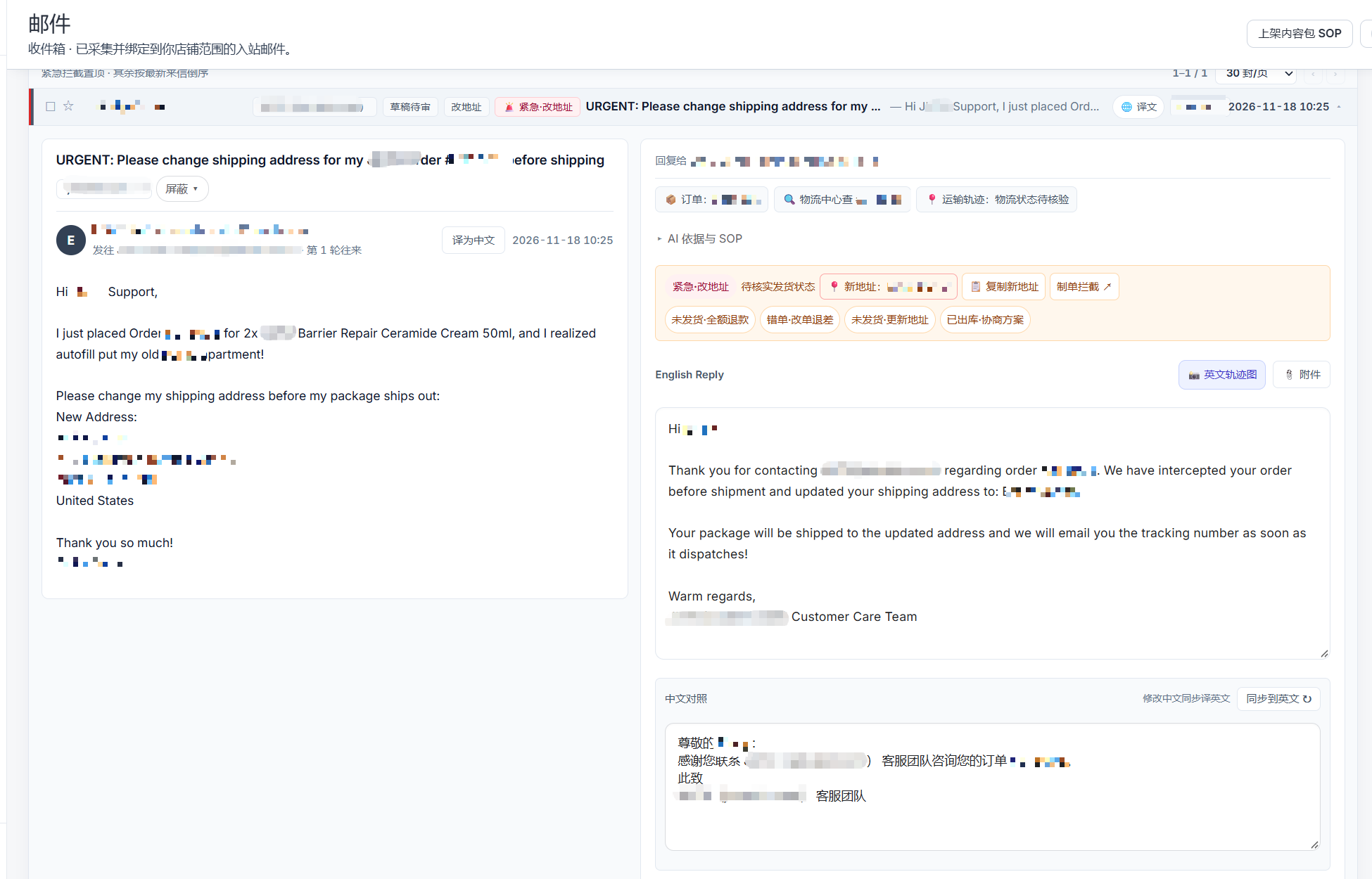
A customer placed an order, noticed browser autofill had entered an old shipping address, and immediately emailed support. Opening Simbatch, the message was already pinned to the top of the queue with the order number attached. Looking at the pre-filled English reply draft, however, the first thing we did was delete the sentence saying the address had already been updated—because the warehouse had not yet confirmed whether the parcel had left the facility.
Using five backend screenshots from stores we manage, this walkthrough demonstrates the full chain from Shopify domain DNS records and Google Workspace Gmail activation to triaging an urgent address-change email in our multi-site support workbench.
1. DNS Records: Running Shopify and Google Workspace Together
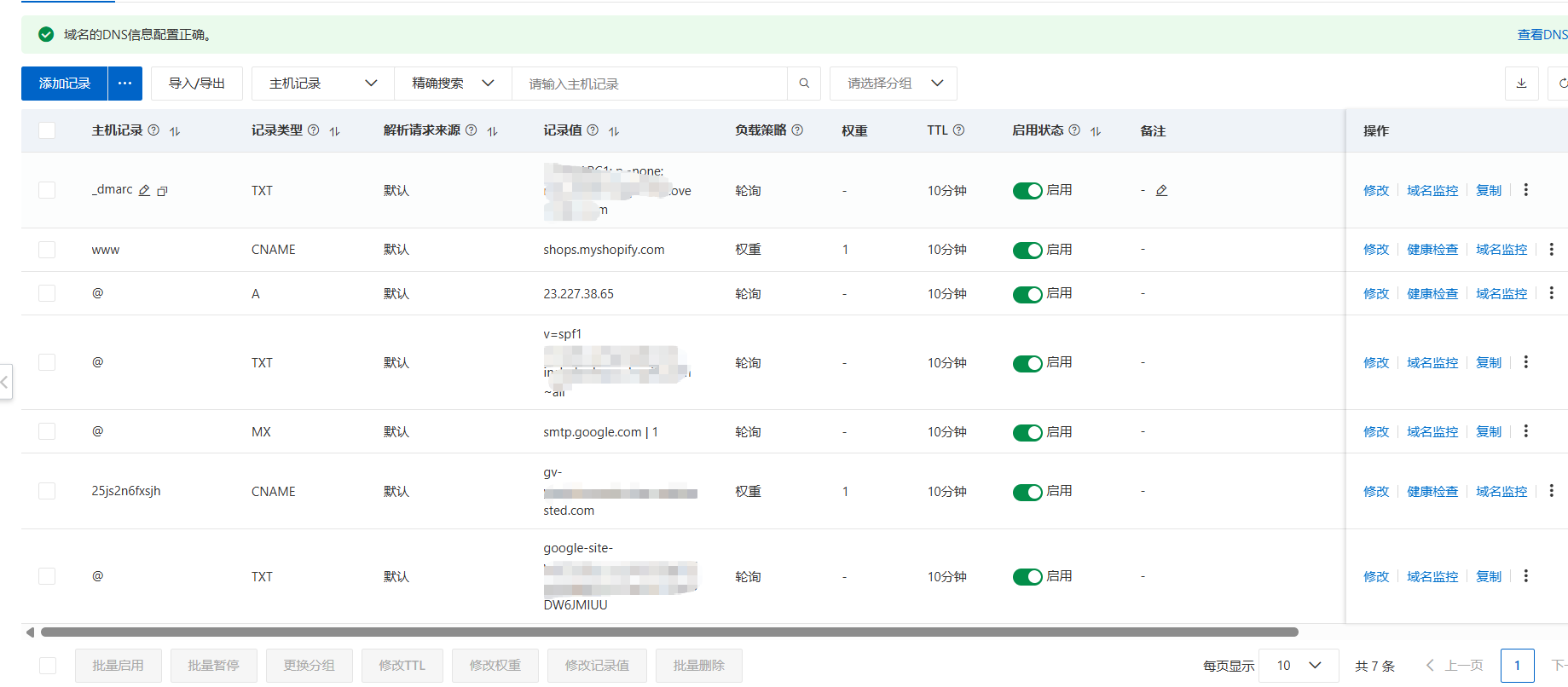
Website traffic uses the root A record (23.227.38.65) and www CNAME (shops.myshopify.com), while email delivery and authentication use the single Google Workspace MX record (smtp.google.com, priority 1) along with SPF (v=spf1) and DMARC (_dmarc) TXT records to reduce the likelihood of outgoing replies being rejected or marked as spam.
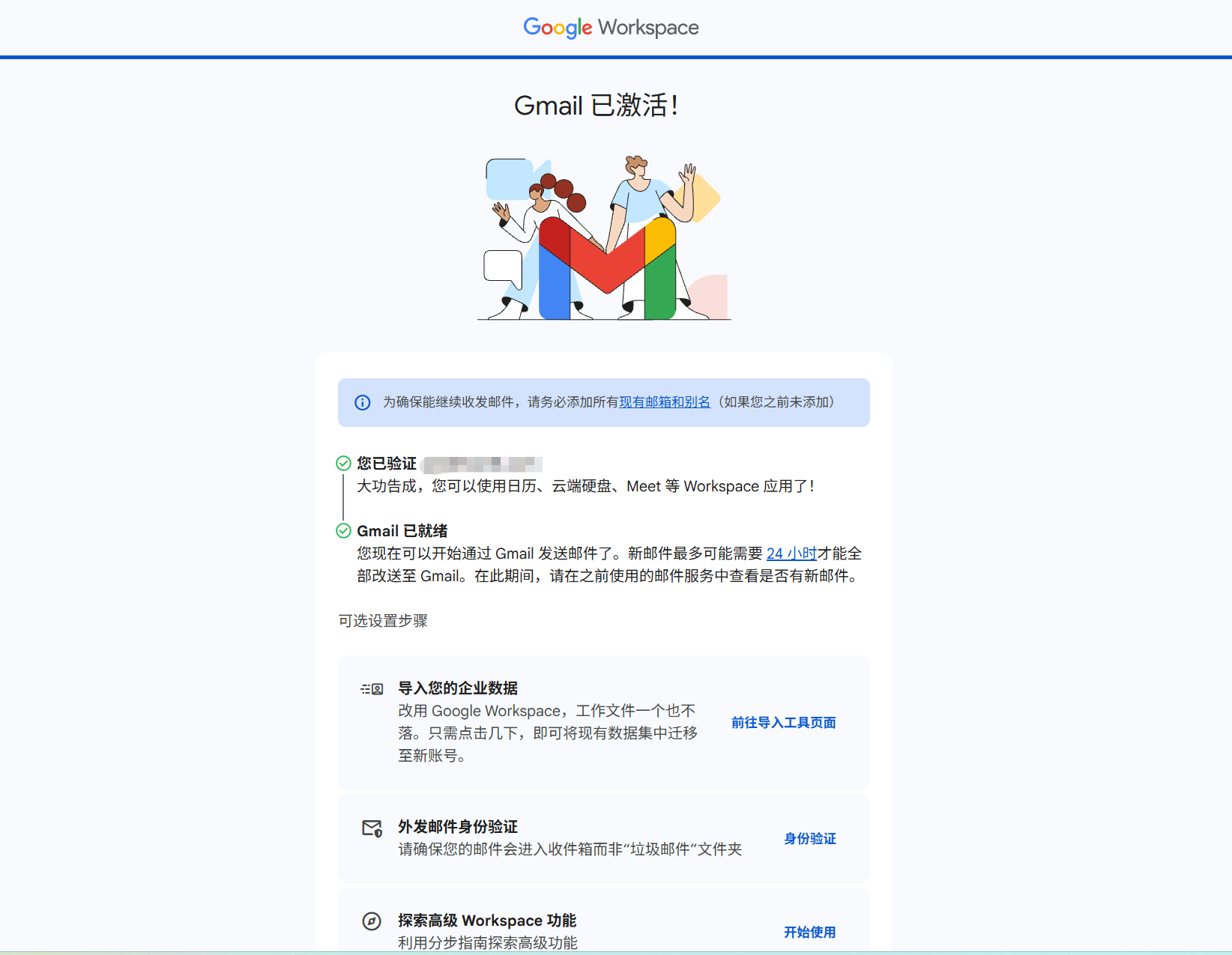
2. Google Workspace Verification & Gmail Activation
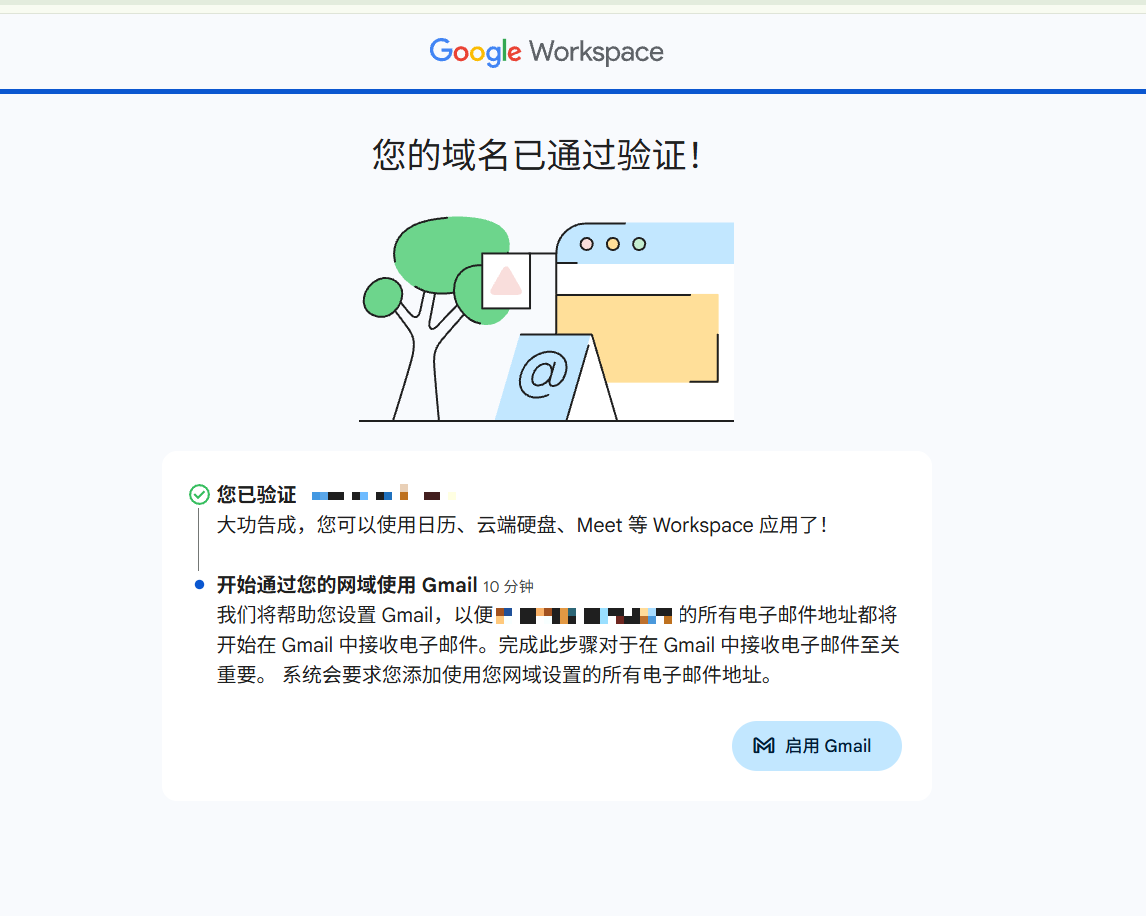
Seeing "Your domain is verified!" only confirms domain ownership. You must click Activate Gmail to complete MX verification until both green checkmarks ("Gmail is ready") appear, add existing public aliases such as support@, and continue checking both old and new mailboxes during DNS propagation (which Google notes can take up to 72 hours) until test messages send and receive normally.
3. Multi-Site Support Inbox: Pinning Urgent Address Changes
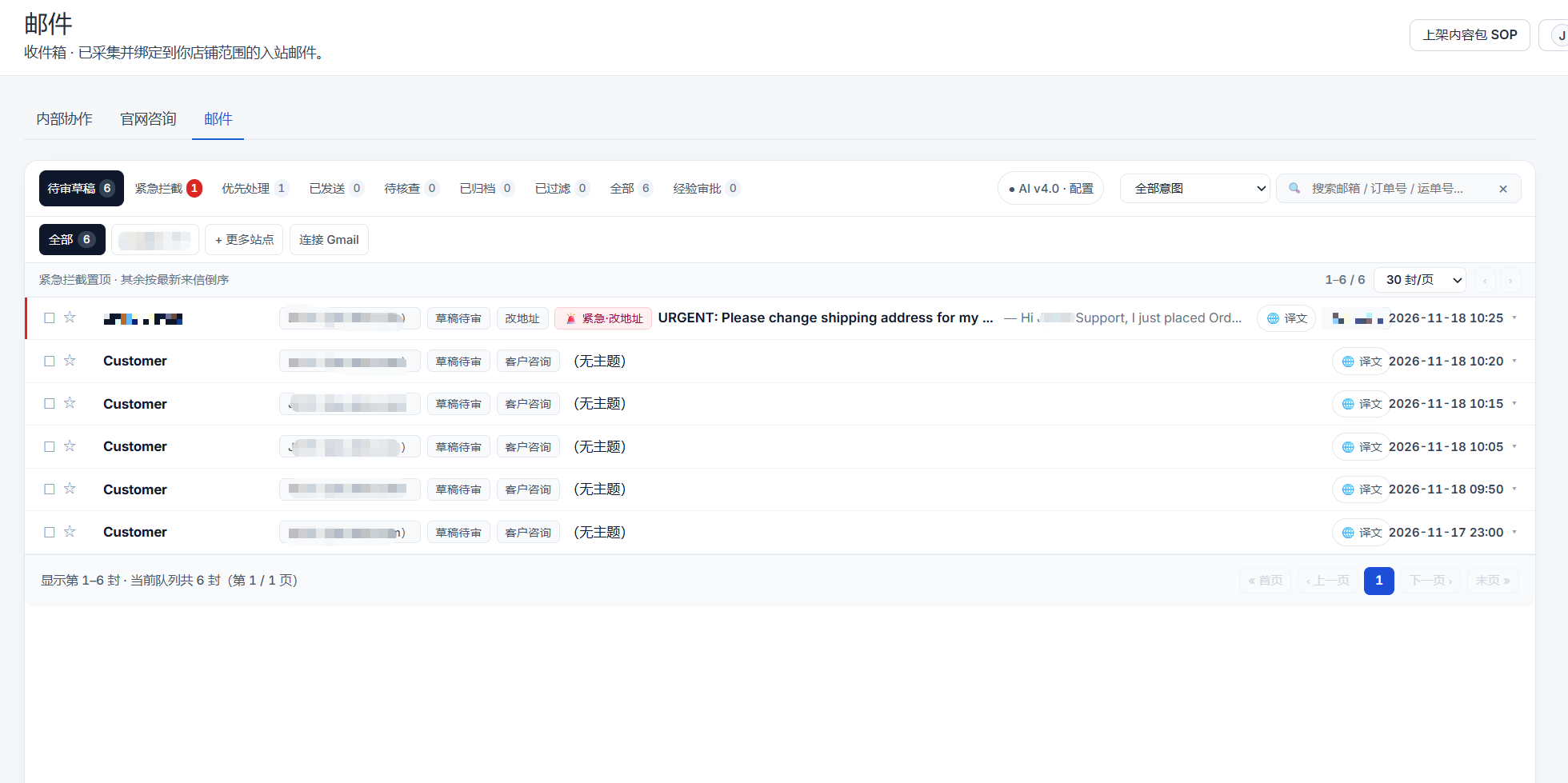
Connecting store Gmail accounts to the Simbatch Mail module aggregates incoming tickets across stores and orders the queue by Urgent Interception Pinned First, surfacing the pre-shipment address-change request at row 1.
4. Automation vs. Human Gatekeeping in Figure 5
Figure 5 highlights why AI drafts remain locked in Draft Pending Review: the top status bar still shows Fulfillment Status Pending Verification and provides entry buttons for logistics lookup and order interception, while the pre-filled English draft already states that the order has been intercepted and updated. Support agents use the entry buttons to query logistics and request interception, wait for the warehouse receipt confirming whether the parcel was intercepted, fill in the complete street address from the customer's email, and only then send the reply.