
Summary: Step-by-step record of creating Simbatch Ads Connector, verifying ads_read permissions, reading ad account fields and Insights, and extending the token. ROAS and auto-pause were not tested.
Overview
I am Daming. In this walkthrough, I set up a Facebook ad data connector for Simbatch under the app name Simbatch Ads Connector. The process included creating the app, selecting permissions, and hitting a permission error on the first read attempt. Afterward, I switched to a user access token and successfully read the target ad account details and ad reports in Meta's Graph API Explorer.
Here are the verified results up front: /me/permissions returned ads_read and public_profile as granted; the target ad account returned currency USD and time zone Asia/Shanghai; and account-level Insights returned spend, impressions, and clicks for October 26 through November 1, 2026. I then extended the access token, and the debugger showed the new token expiring on January 1, 2027.
Below is the exact sequence of steps—the creation entry point, the error encountered, the verification checks, and the final API responses. This article documents the connector setup and API read validation so the team can apply the same checklist to future Simbatch data integrations. ROAS and automated ad pausing were not tested here; re-testing with the new token, saving credentials in Simbatch, scheduled syncing, and frontend display still require follow-up validation.
1. Why Connect This Ad Account
I want to view core advertising metrics—spend, impressions, and clicks—alongside the store, product, and creative records our team uses every day. Before building out the integration, we needed to answer one concrete question: can our current app and access token actually read data from the right ad account?
So I started with a read-only verification pass: checking which app is used, which token type is selected, what permissions the token carries, and which ad account responds. Once those pieces are verified, we can move on to credential storage, scheduled sync jobs, and dashboard reporting inside Simbatch.
I previously documented how Shopify connects with another ad platform:
How to Connect Shopify to ChatGPT Ads: US Store Account and Pixel Binding Notes
This post covers the Facebook ad data side. Because the two platforms differ, each setup follows its own entry points and authorization flow.
2. Creating the Simbatch Ads Connector App
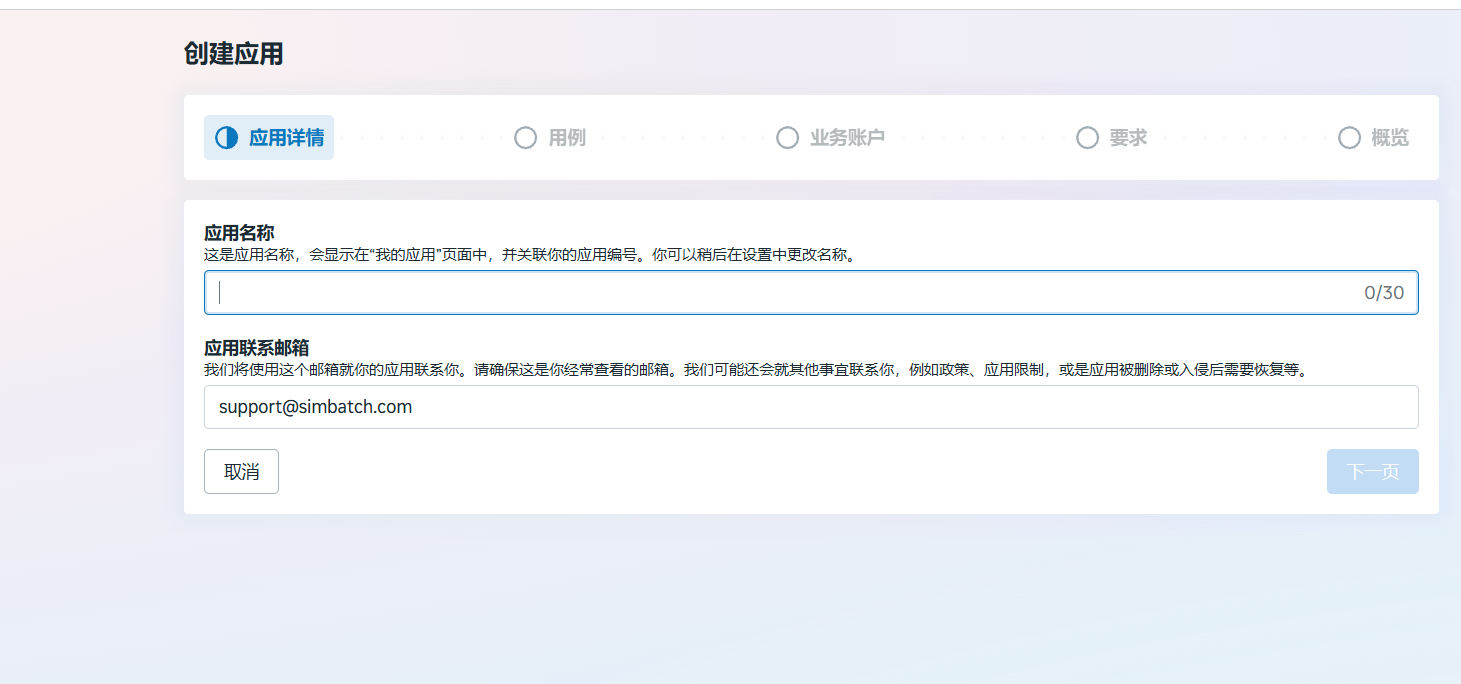
I started in Meta for Developers under "My Apps" to create a new app. Across the top of the setup wizard, the steps appear in order: App details, Use cases, Business, Requirements, and Overview.
Meta for Developers Apps Console
Step one is entering the app name and contact email. For this connector, I used the name Simbatch Ads Connector and the contact email support@simbatch.com. Figure 1 captures the form as first opened before the name field was filled in; the completed app name can be confirmed on the dashboard later.
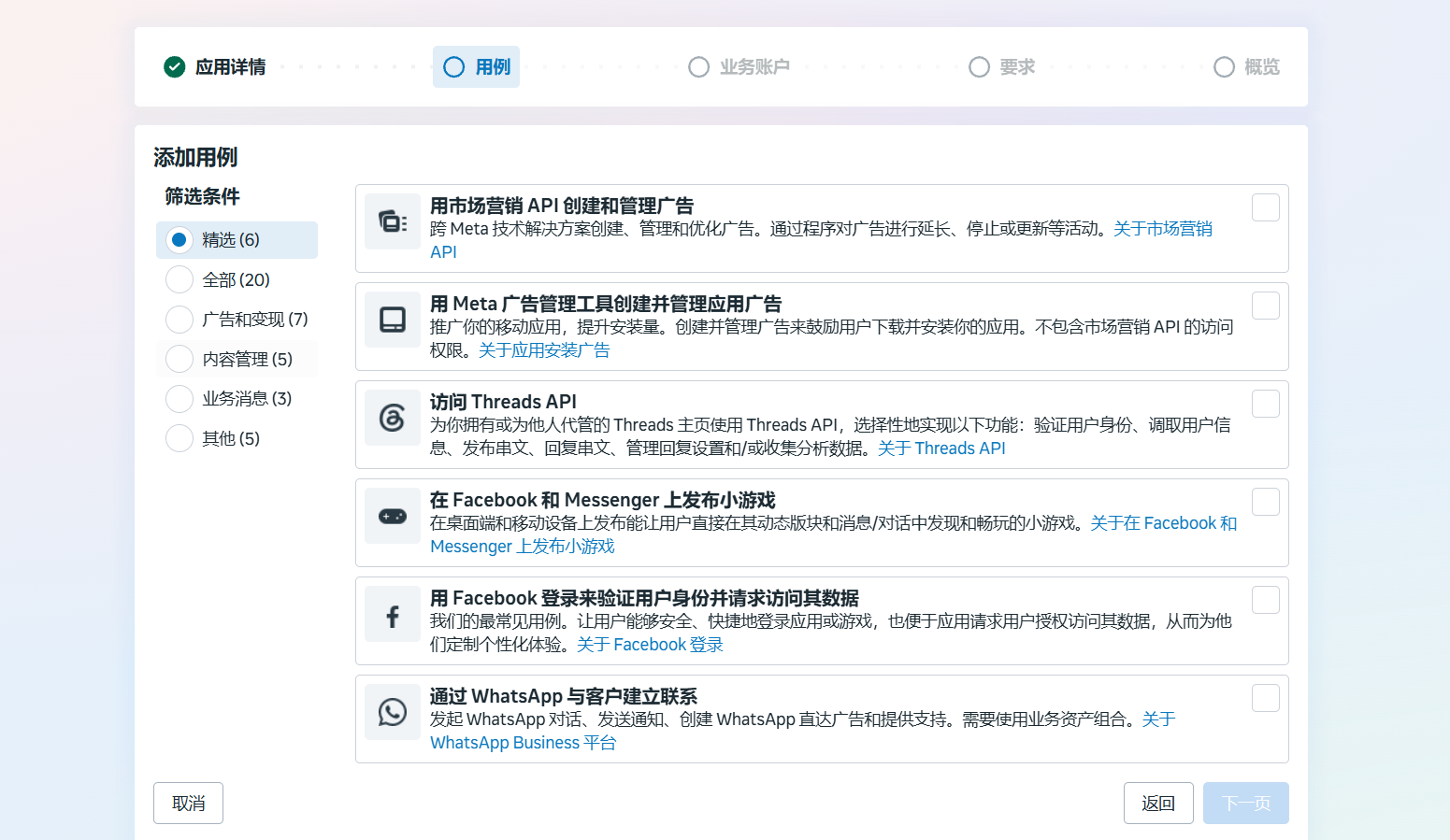
Next comes "Add use cases." Here I selected Create & manage ads with Marketing API. Another option on the page—"Create and manage app ads with Meta Ads Manager"—explicitly notes that it does not include Marketing API access, so checking the exact use-case label matters.
After selecting the corresponding business portfolio, reviewing requirements, and confirming the overview, I finished creating the app. The dashboard then opened with Simbatch Ads Connector shown in the top-left corner and an entry card in the center to customize the "Create & manage ads with Marketing API" use case.
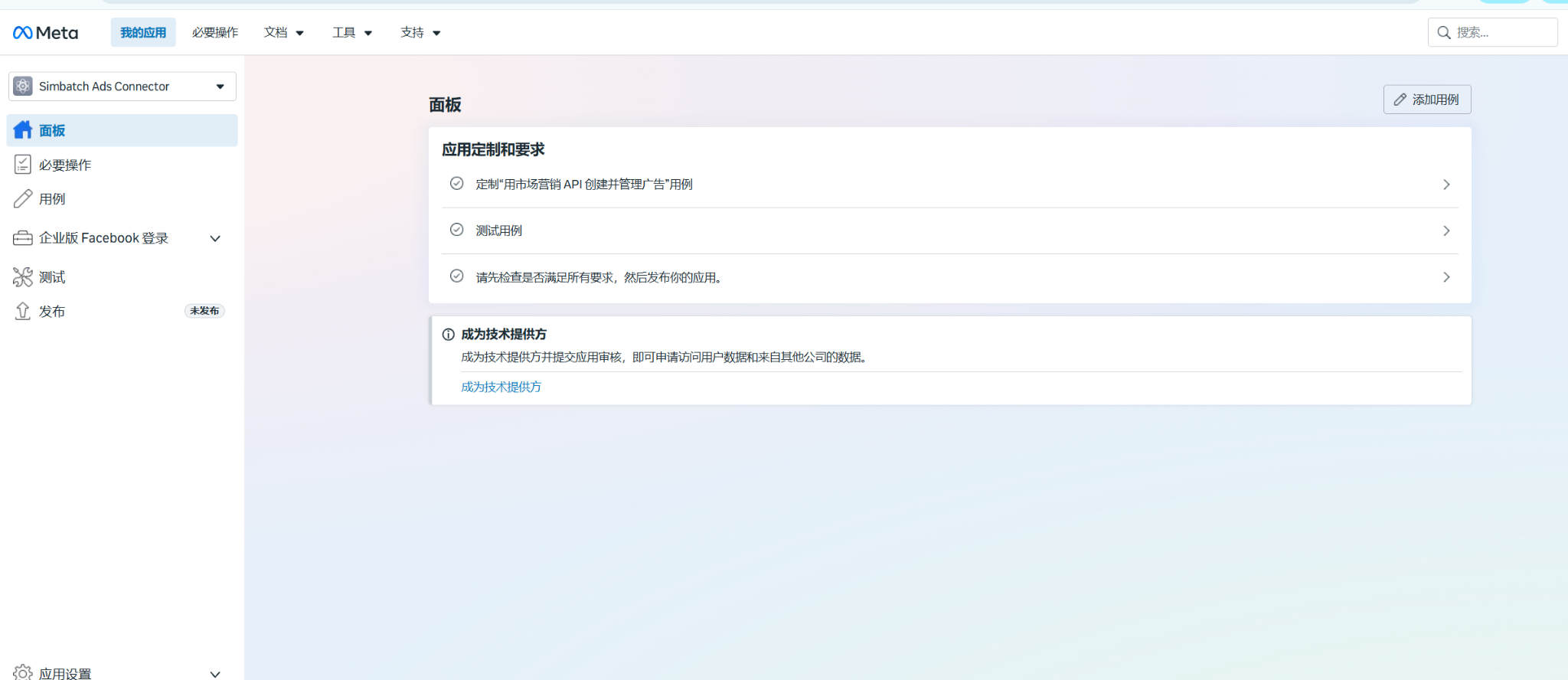
At this point, the "Publish" item on the left sidebar still showed "Unpublished." I proceeded directly with permission checks and data-read tests rather than assuming app creation meant the app was publicly live.
3. Reviewing Permissions and Basic App Settings
From the dashboard, I opened the customization view for the Marketing API use case and inspected the "Permissions and features" list. Here, ads_management, ads_read, and business_management all showed "Ready for testing," while the Marketing API Access Tier showed "Limited Access."
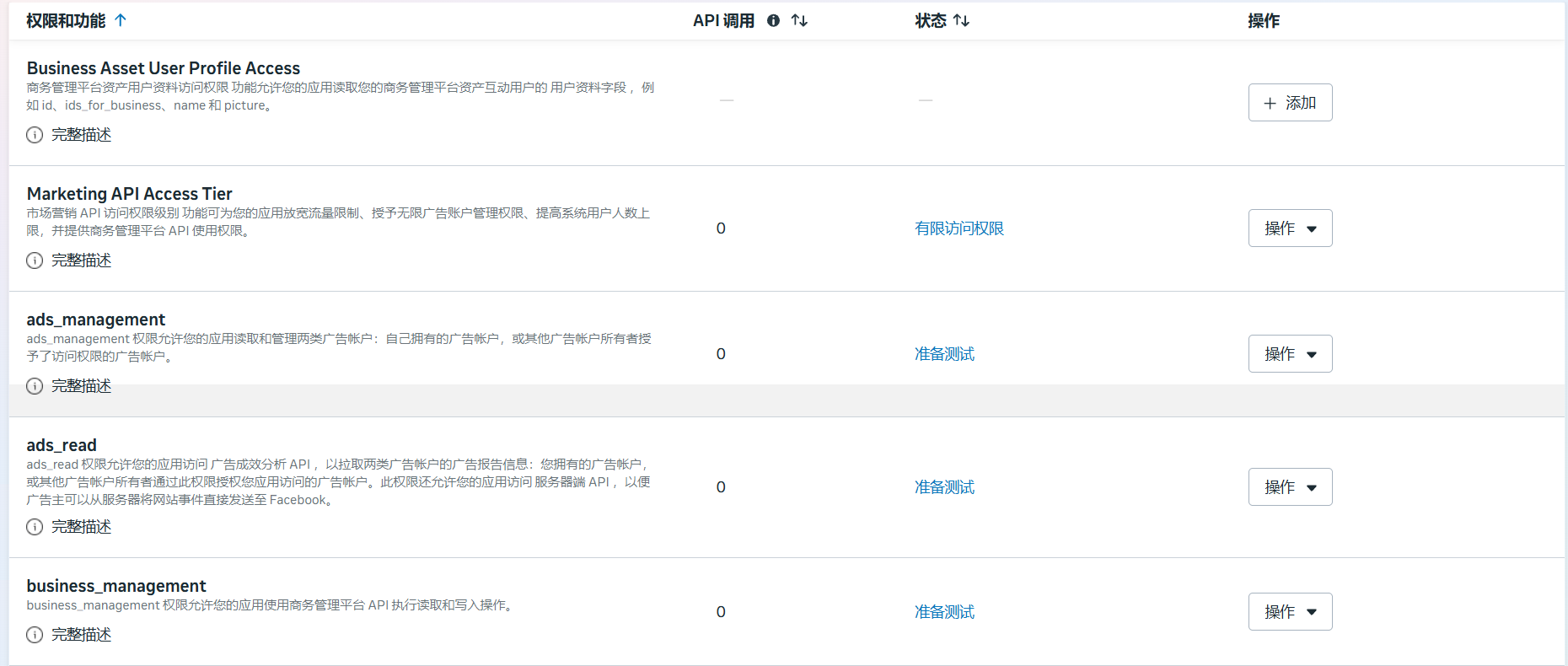
Because my goal here is reading ad data, I focused on ads_read. Seeing a permission listed in the app settings is separate from having that permission granted on an active access token. Once I generate a token, I still verify what is actually granted via /me/permissions.
Next, I opened App settings > Basic. This screen lets you verify the App ID, Display Name, and Contact Email, while the App Secret on the right is masked with dots and provides a "Show" button.
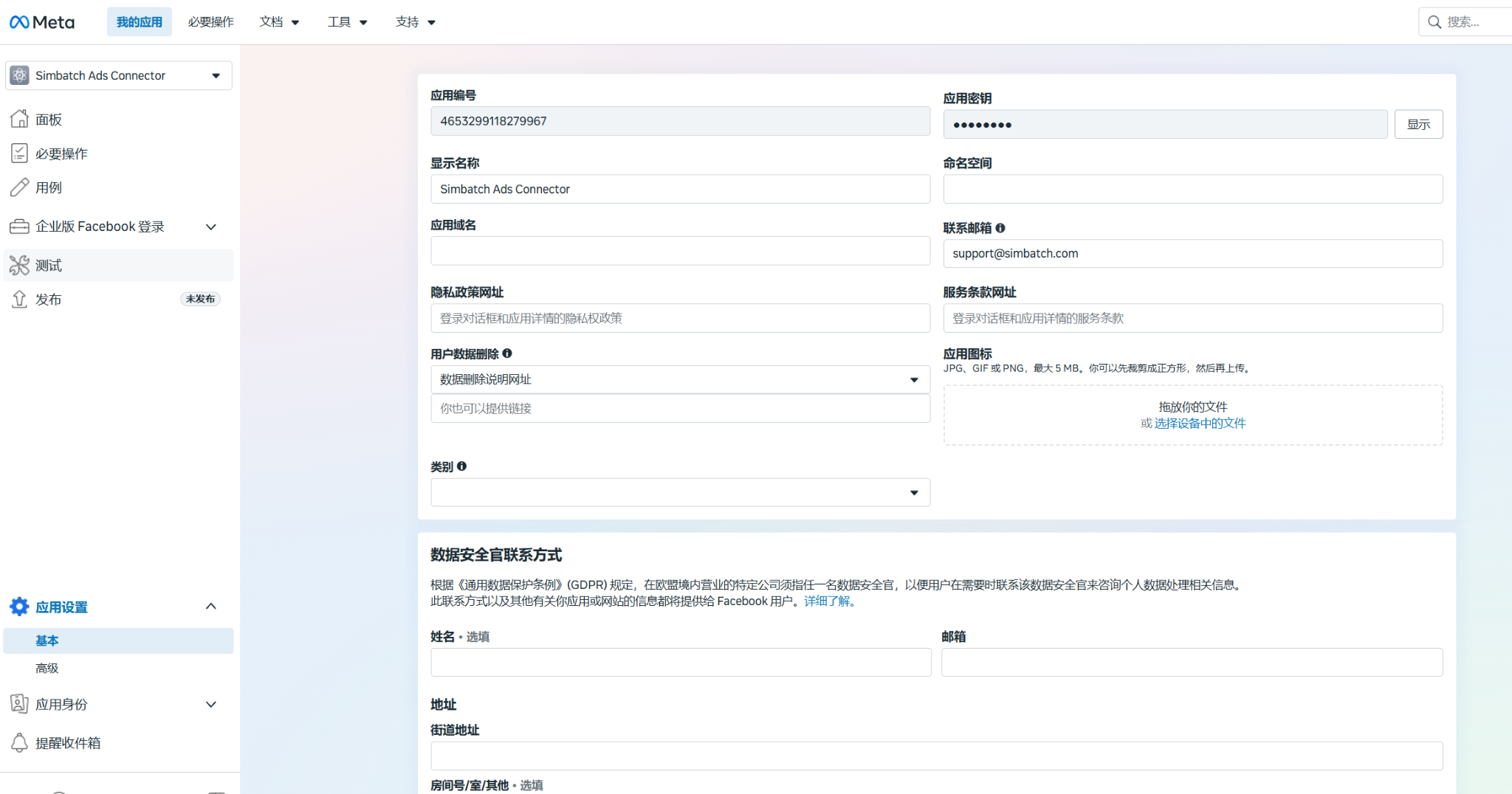
The same page also contains fields for App Domains, Privacy Policy URL, and Terms of Service URL. In this screenshot, those URL fields still show placeholder text. I documented that state as-is so opening the settings page is not confused with having filled out and saved those fields.
4. First Read Attempt and Permission Error
Opening the Graph API Explorer, I tried to read basic fields from the target ad account using API version v26.0 as shown on screen. Instead of account details, the response returned an OAuthException with error code 200, citing missing ads_management or ads_read authorization.
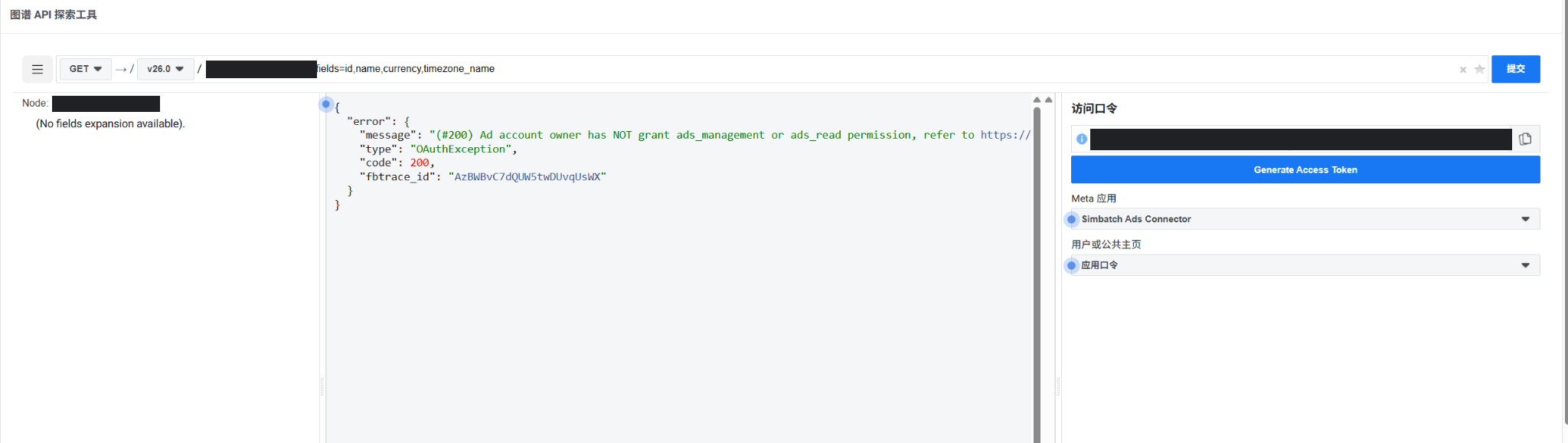
Looking back at this screenshot, the "User or Page" selector on the right was set to App Token. In all the subsequent screenshots where reads succeeded, that selector was switched to User Token. Comparing these two states is an essential troubleshooting check: simply having a token string generated does not mean it has user-level authorization to read an ad account.
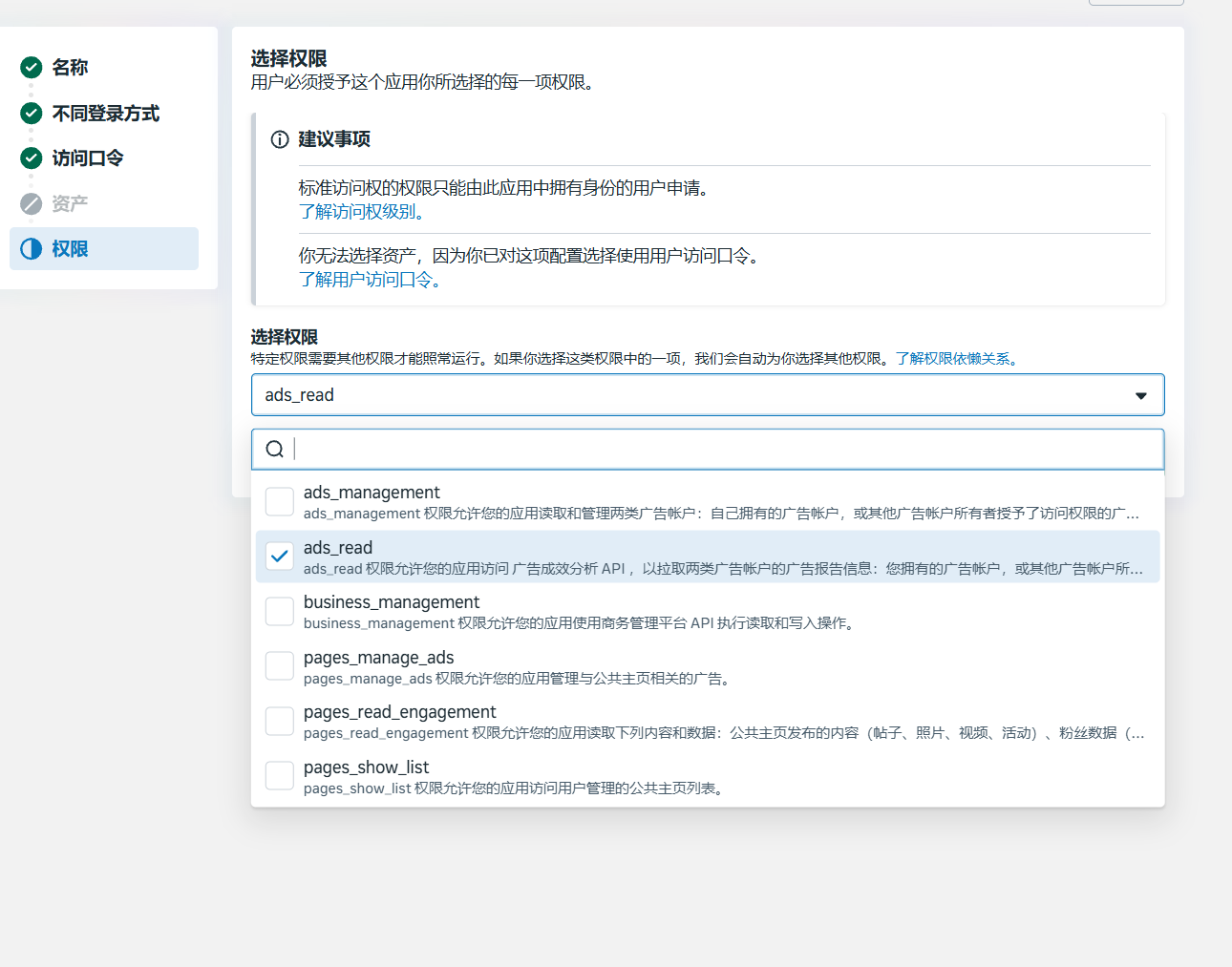
I then configured the user token and selected permissions. On the "Select permissions" modal, I checked ads_read only, leaving ads_management, business_management, and other options unchecked. The page also confirmed that this configuration uses a User Access Token.
5. Confirming Token Permissions from Actual API Output
After configuring the token, I returned to the Graph API Explorer, verified the selected app, and switched to the User Token. First, I ran a permissions check:
GET /me/permissionsIn the returned data array, both ads_read and public_profile showed a status of granted. That gave me direct API evidence of what the active user token was actually authorized to do.
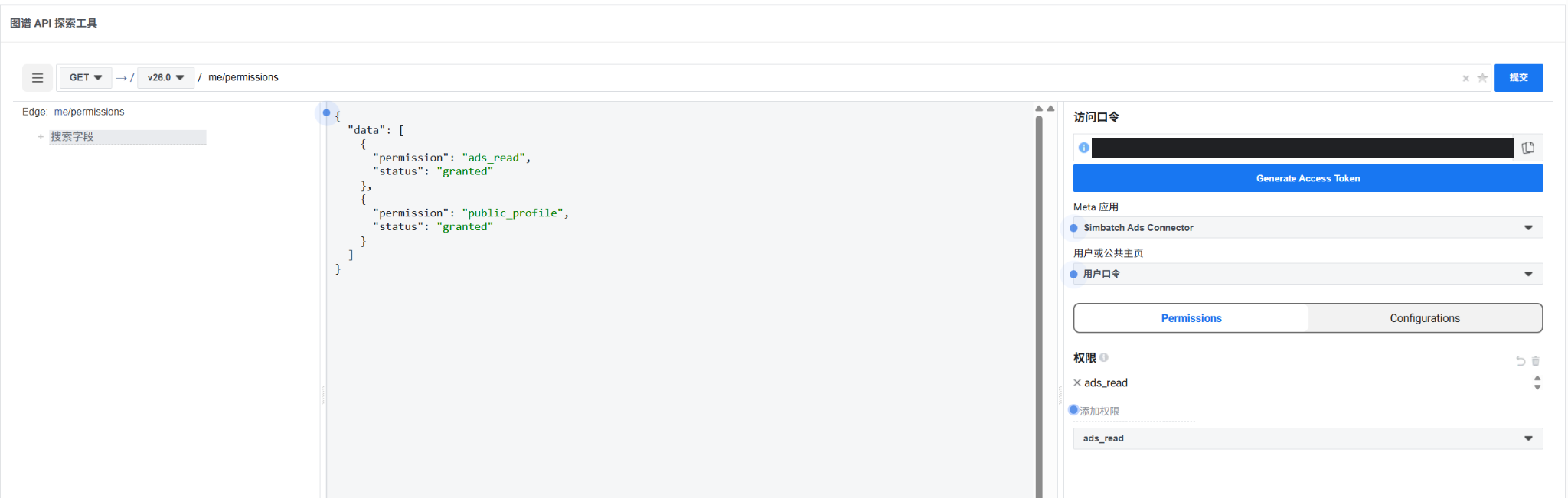
This response defines the actual scope of the current token—do not assume every permission listed in the app's feature table is included. In particular, ads_management appeared in the app's permissions list earlier, but it was not returned here.
6. Reading Basic Fields for the Target Ad Account
With permissions confirmed, I queried the target ad account for id, name, currency, and timezone_name. Below, the real account number is replaced with a placeholder while keeping the exact request format:
GET /act_YOUR_AD_ACCOUNT_ID?fields=id,name,currency,timezone_name
The response returned the account ID, account name, USD currency, and Asia/Shanghai time zone. Checking the target account metadata before pulling metrics prevents mixing up data across multiple ad accounts later. The account ID, name, and access token are masked in the published screenshots.
7. Querying Account-Level Ad Insights
Once the basic account fields succeeded, I queried Insights for the same account. The requested fields were account_id, account_name, spend, impressions, and clicks, with date_preset=last_7d and level=account.
GET /act_YOUR_AD_ACCOUNT_ID/insights?fields=account_id,account_name,spend,impressions,clicks&date_preset=last_7d&level=accountWhen entering the path in the explorer, keep the query string on a single line and substitute your own target ad account ID.
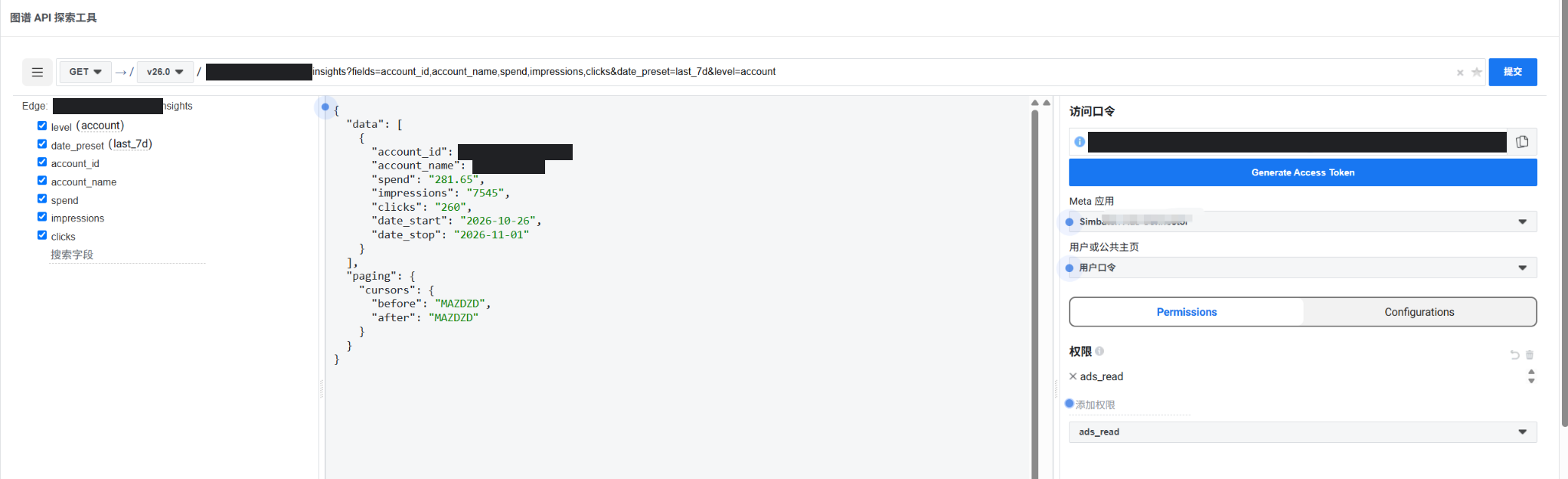
The table below records the exact values returned by the API. Currency follows the account's confirmed USD setting, and the dates match date_start and date_stop in the JSON response.
| Field | Returned Value |
|---|---|
Reporting start date (date_start) | 2026-10-26 |
Reporting end date (date_stop) | 2026-11-01 |
Spend (spend) | 281.65 USD |
Impressions (impressions) | 7,545 |
Clicks (clicks) | 260 |
This confirms that the current app and user token can read baseline reporting metrics from the ad account. Note that clicks only reflects the returned click field; orders, revenue, and ROAS were not queried here, so ad profitability cannot be evaluated from this response alone.
8. Checking Access Token Status and Expiration
After the read tests, I opened Meta's Access Token Debugger, pasted the token used above, and clicked "Debug." The page listed the app metadata, token type, expiration time, validity status, and scopes.
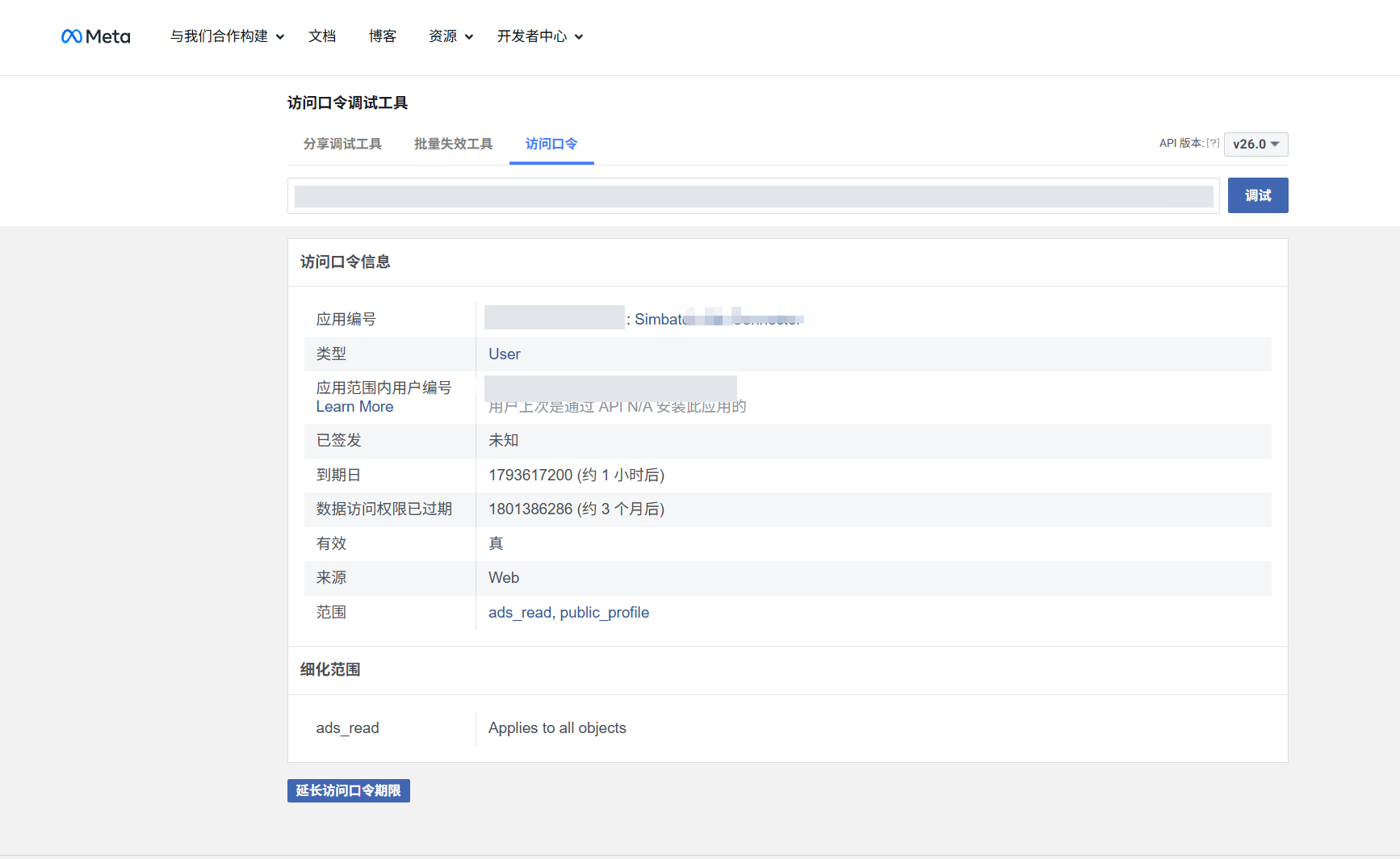
Here, the token type was User, "Valid" showed True, and Scopes showed ads_read and public_profile. Next to "Expires," the relative indicator read "in about an hour." These details reflect that specific token at the time of testing—always check the actual expiration shown for your own token.
It is also worth separating two fields: Valid: True only tells you the token is currently valid according to the debugger, whereas the granted permissions appear under Scopes. They answer two different questions—validity versus authorization scope—so never treat True as proof of specific API permissions.
9. Extending the Access Token and Verifying the New Token
Below the debugger details, I clicked Extend Access Token. A new section appeared on the page displaying a newly generated long-lived access token, explicitly noting that it expires on January 1, 2027.
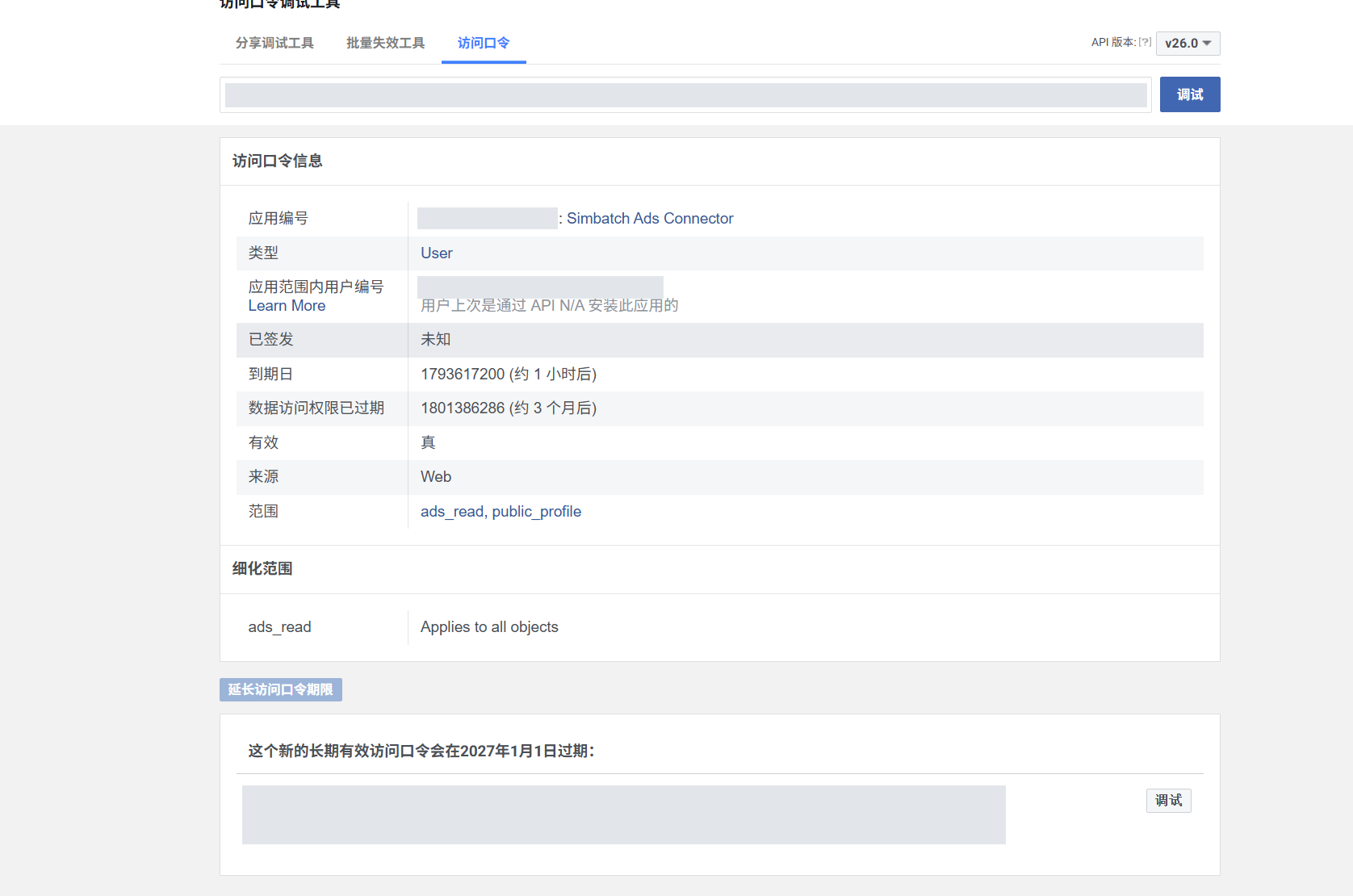
Notice that in this screenshot, the upper section for the old token still says "in about an hour," while the newly generated section below shows the extended expiration date. When reading the screen or copying credentials, make sure you distinguish the two tokens and configure your integration with the new one.
Even a long-lived token has an expiration date. What this step confirms is that the page generated a new token with the displayed expiration—it is not a permanent token, and the earlier read tests performed with the short-lived token do not substitute for re-testing with the newly extended token.
10. Where This Setup Stands
In this session, I completed creating the connector app, verifying user token permissions, reading basic fields for the target ad account, querying account-level Insights, and generating a longer-lived token in the Access Token Debugger. Both the initial permission error and the successful API responses are documented above.
For Simbatch, these checks establish the baseline for integration. Turning this into reliable backend data still requires re-testing with the new extended token and verifying connector reads, database storage, scheduled sync jobs, and dashboard views inside the system. This note covers only the verified API responses and token extension observed so far.
About Daming & Simbatch
I am Daming, documenting real-world operations across independent e-commerce storefronts, ad campaigns, and building the Simbatch system. Putting app setup, permission verification, error states, and API outputs together in one record gives the team a repeatable checklist for future integrations.
Related reading: How to Connect Shopify to ChatGPT Ads: US Store Account and Pixel Binding Notes · How to Connect Google Search Console and GA4 to Your Website: Simbatch Field Notes · How AI Learns from Team Memory.
FAQ
If app permissions show "Ready for testing," does that mean the token is already authorized?
No—you cannot rely on that label alone. In this setup, several permissions on the app list showed "Ready for testing," while GET /me/permissions actually returned only ads_read and public_profile as granted. Always verify against the permissions endpoint and live calls to the target ad account.
Did this walkthrough read the Facebook ad account using an App Token or a User Token?
The screenshot showing OAuthException (#200) had "App Token" selected. All subsequent screenshots that successfully returned permissions, account metadata, and Insights used a "User Token" (shown as Type: User in the Access Token Debugger).
Did this setup request ad-management permissions or modify any ads?
No. Only ads_read was checked during permission selection, and every API request shown is a read-only GET query. No ads were created or paused, and no budgets were changed.
Does an extended Facebook access token never expire?
No. After clicking "Extend Access Token" in the Access Token Debugger, the interface explicitly stated that the new long-lived token expires on January 1, 2027. You still need to track its expiration date and renew or maintain it accordingly.
If Insights data appears in Graph API Explorer, does that mean Simbatch auto-sync is already complete?
No. A successful response in Graph API Explorer only confirms that the current app and user token have permission to read the target ad account. Storing the extended token in Simbatch, running scheduled sync jobs, and displaying data in the frontend still need to be verified inside the system.