

Summary: Real Simbatch setup record covering Search Console DNS domain verification, sitemap submission, homepage index inspection, and GA4 realtime validation—explaining discovered, indexed, and active user signals.
Overview
Once a website goes live, how do you verify that Google can find your pages and that visit tracking is working?
Start in Google Search Console by verifying domain ownership, submitting a sitemap, and using URL Inspection to confirm indexing on key pages. Then create a web data stream in Google Analytics 4 (GA4), connect the measurement tag to your site, and validate live visits in the Realtime report. Sitemap read success, page indexing, and GA4 data collection are three separate outcomes that must each be checked independently.
When connecting Google tools to the Simbatch website, we ran into a screen that is very easy to misread: the top banner in GA4 still read "No data received from your website yet," while the right-hand card already showed 2 active users in the last 30 minutes.
If you only look at the top banner, it is easy to assume the setup failed; if you only look at the number 2, it is easy to mistake your own test visits for customer traffic. This note records our exact steps, what to verify at each stage, and what each signal actually means.
What Search Console and GA4 Are Used For
Search Console shows how your site performs in Google Search; GA4 tracks the visits your site receives and what visitors do once they arrive. They answer different questions.
| Tool | Primary Focus | First Checks in This Walkthrough |
|---|---|---|
| Google Search Console | Index status, search impressions, clicks, and queries | Domain ownership, sitemap submission, and homepage indexing |
| Google Analytics 4 | Collected traffic sources, page views, and engagement events | Web data stream and realtime visit signals |
For running an official website, we gradually want to answer three questions: can people find the site, what do they view after arriving, and do they submit an inquiry? Installing both tools is the starting point for measuring those answers.
Step 1: Verify Domain Ownership in Search Console
The primary Search Console property used here is simbatch.com. A Domain property covers all protocols and subdomains under that domain and requires DNS verification through your domain provider.[1]
- Open Search Console, choose "Domain" property, and enter your domain name.
- Follow the verification instructions to add the DNS record at whichever provider actively manages your DNS—do not overwrite existing records.
- Wait for DNS propagation and return to Search Console to complete verification.
We completed domain verification for simbatch.com. Keep the DNS verification record in place afterward, as Google periodically re-checks that the verification token remains valid.[1]
This step confirms administrative ownership. Next, you still have to verify whether Google has discovered your pages and indexed them.
Step 2: Does Sitemap Success Mean All Pages Are Indexed?
No. A sitemap helps Google discover URLs; indexing status must be checked separately. Google's own documentation notes that a sitemap does not guarantee every listed URL will be crawled and indexed.[2]
Here we submitted https://simbatch.com/sitemap.xml. Under the Sitemaps screen in Search Console, the status showed "Success" with 19 discovered pages.
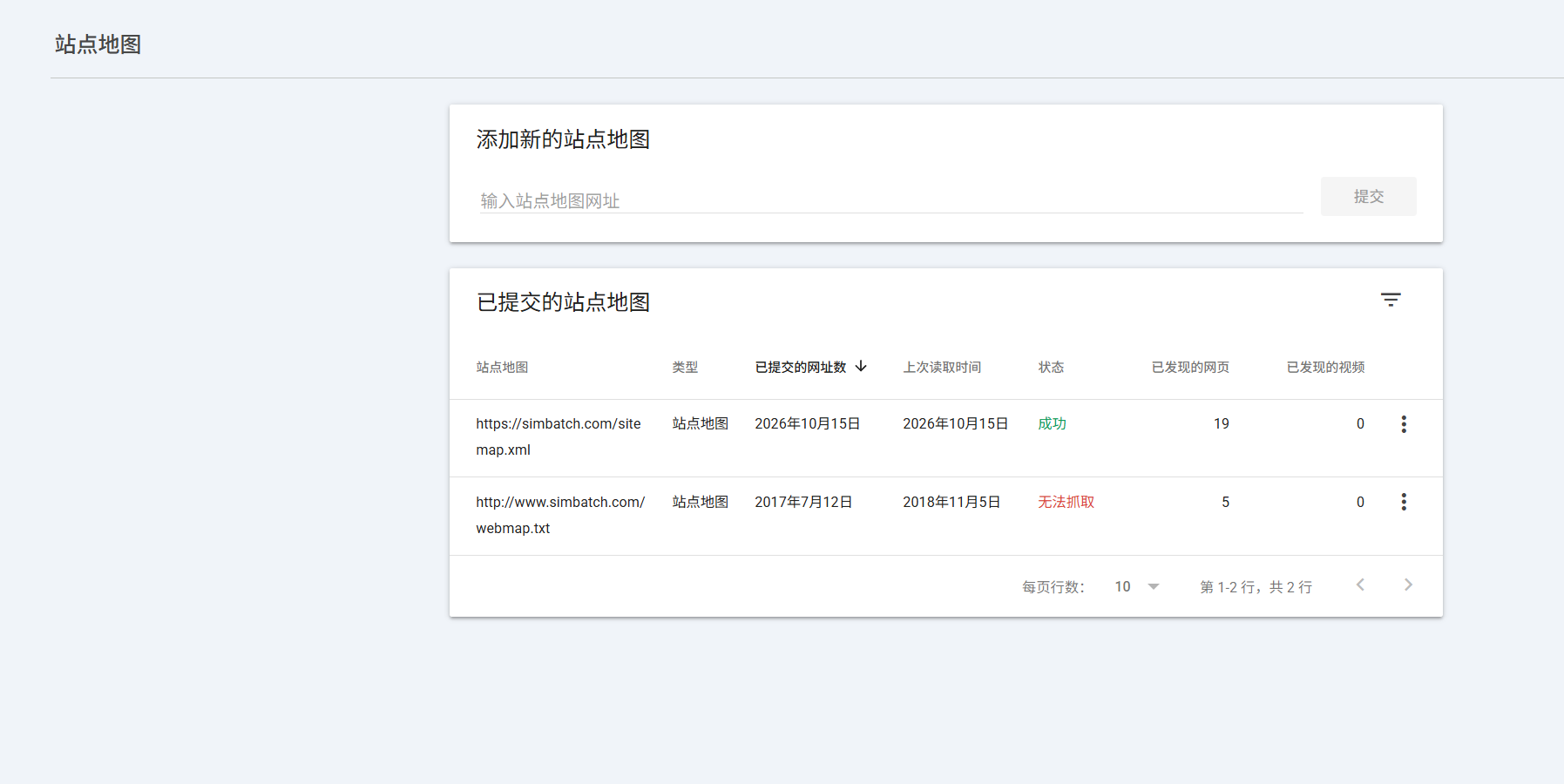
This screenshot proves that Google successfully fetched the sitemap and discovered 19 URLs. It does not prove that all 19 pages are indexed, nor does it prove those pages are receiving search traffic.
The screen also shows a legacy webmap.txt entry marked "Couldn't fetch." We confirmed the new sitemap first and logged the legacy entry for cleanup later. When setting up your own site, submit the sitemap URL your site actually generates—the filename does not have to match Simbatch's.
Step 3: Confirm That the Homepage Is Indexed by Google
Enter the full homepage URL https://simbatch.com/ into the top URL Inspection bar in Search Console. Our check returned "URL is on Google," confirming that the page is indexed and served over HTTPS.
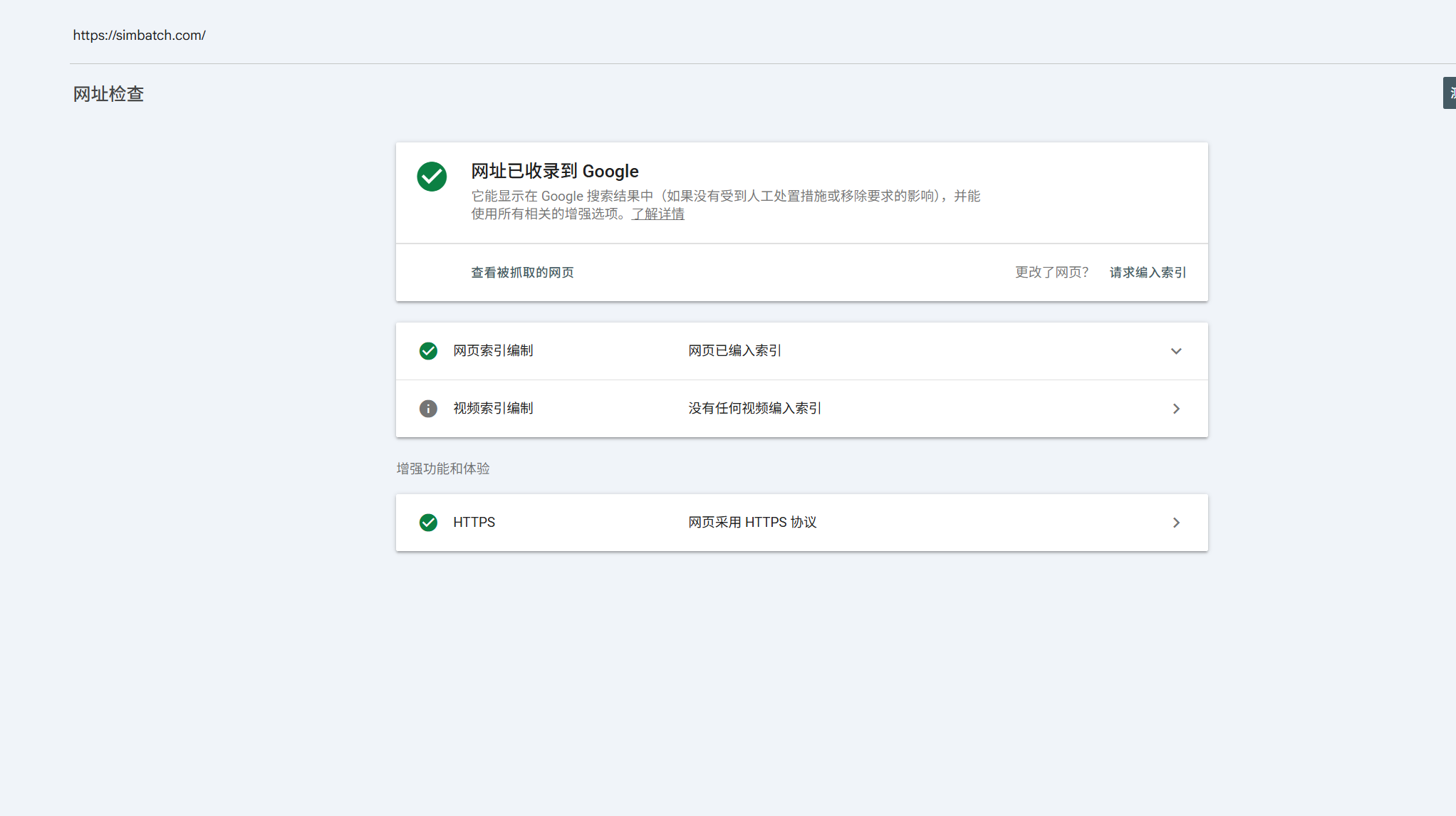
This confirms the homepage's indexing status. Whether a page appears for a given search query—and where it ranks—depends on the query and additional factors; "indexed" by itself never guarantees rankings.[3]
If your own page shows as not indexed, expand the details first to inspect whether crawling, access, or indexing is blocked. Fix the underlying issue, run "Test Live URL," and request indexing only when needed rather than clicking "Request indexing" repeatedly without checking the cause.[3]
Note that "No video indexed" in the screenshot is the video indexing check—it does not contradict or invalidate the passing page-indexing result.
Step 4: Creating a GA4 Web Data Stream and Installing the Tag
You must install the tracking snippet on your website and then verify that data arrives. Creating the web data stream is only part of the setup.[4]
In GA4, we created a web data stream named "Simbatch官网" (Simbatch Official Site) for https://simbatch.com. The stream details page provides a Measurement ID starting with G-, which routes analytics hits to the correct stream.
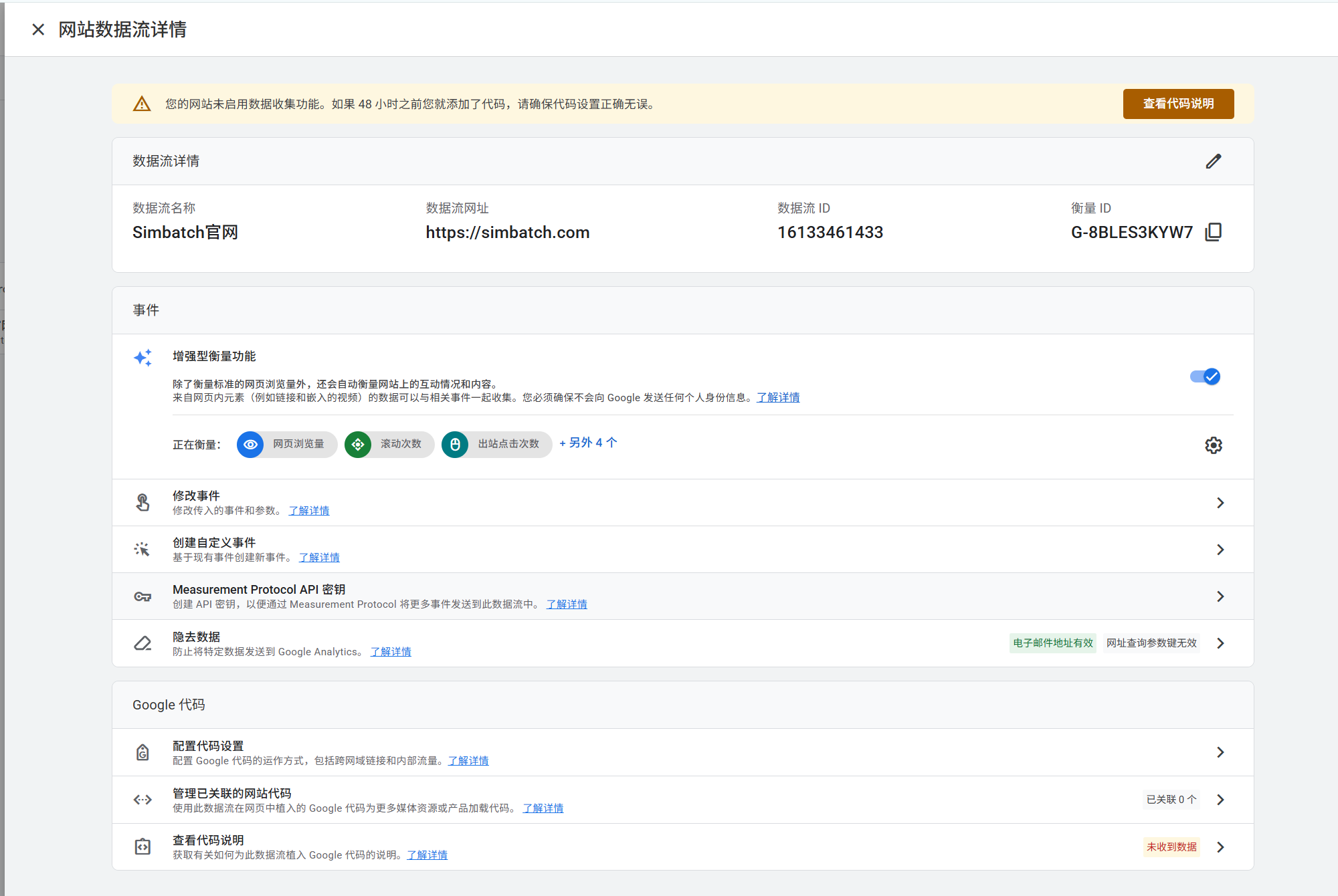
Under "View tag instructions," you can choose the installation method that fits your site. Whether you use a CMS integration, plugin, or shared site script, check existing tags first so the same event is not fired twice. This walkthrough documents the data stream and verified event reception rather than requiring any single plugin.
Always use your own data stream's Measurement ID. Never copy the Simbatch ID from documentation or screenshots, or your traffic data will be sent to the wrong property.
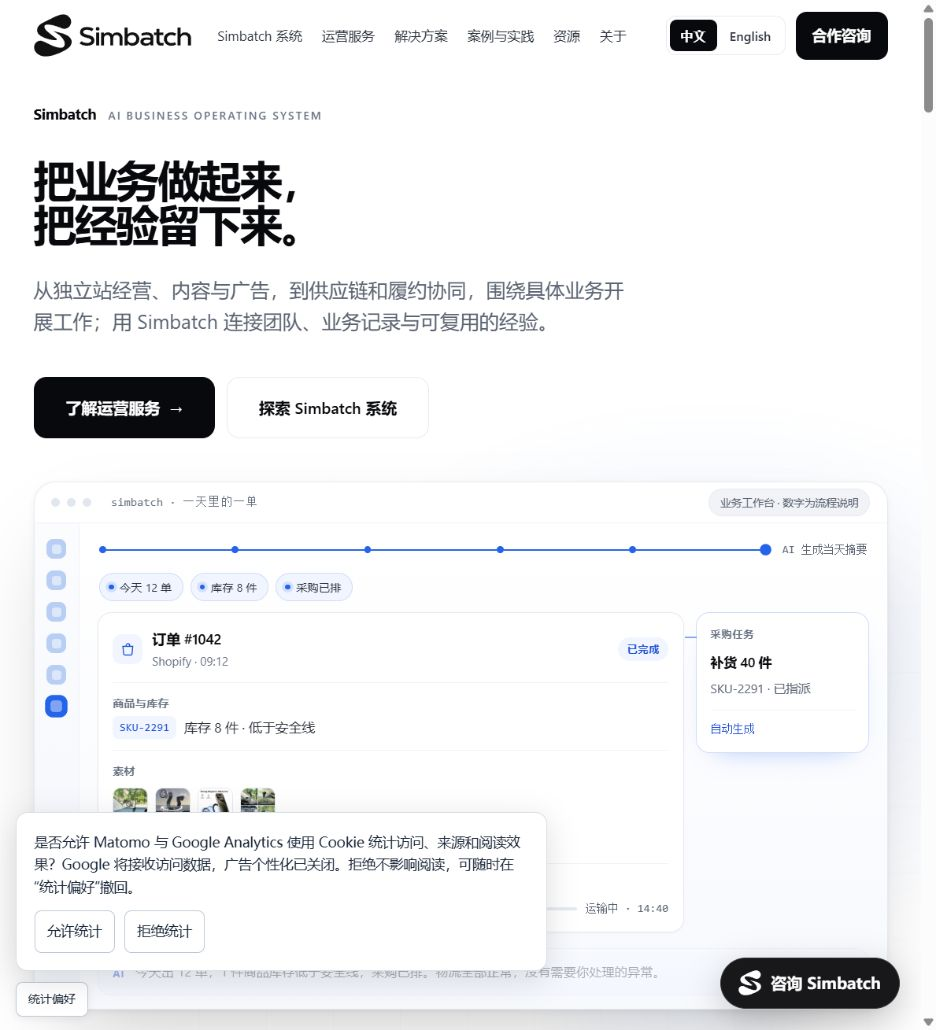
On the Simbatch site, visitors also see an analytics consent prompt with choices to allow analytics, decline analytics, or open preferences. During testing, log which consent choice you selected and verify both behaviors separately; the presence of a consent banner alone does not prove all consent logic is working properly.
Step 5: Where to Check When GA4 Shows Zero Data
Separate the Realtime report from historical date ranges first, then verify hits come from your target pages. In this capture, the right side already showed 2 active users in the last 30 minutes, while the left-hand chart covered October 8–14—excluding October 15, the day we ran the setup.
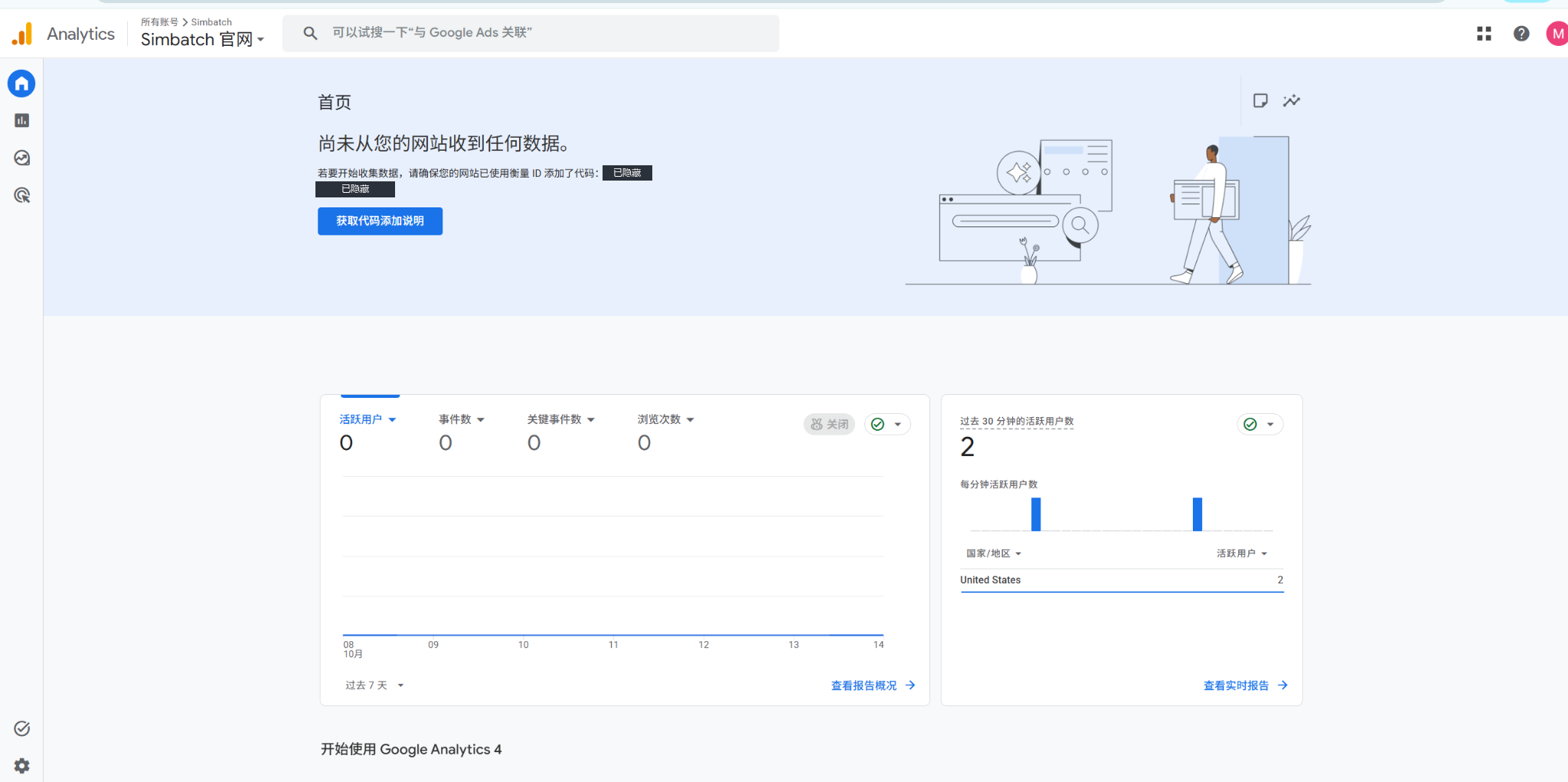
Because of that date window, zeros in the historical chart do not contradict active users appearing in the Realtime card. Top-of-page setup banners can also lag behind, so always inspect Realtime reports and event details directly.
Google notes that realtime data typically appears within minutes, while standard reports can take 24–48 hours to process.[5] In this case, 2 active users only shows that live visits reached this GA4 property—which may include our own test visits.
You can run a quick verification pass as follows:
- Open the site, accept analytics for the test session, and note the exact timestamp.
- Visit the homepage, a services page, and an article, noting each page title.
- Open the GA4 Realtime report and inspect the visited pages and
page_viewevents; if page attribution is unclear, inspect thepage_locationparameter. - Confirm the logged events match your actions and verify that a single page load does not trigger duplicate hits.
Realtime is well suited for ingestion checks like this.[6] What we confirmed at this stage was "realtime data is arriving"—full-site tag coverage, deduplication, and lead-form conversion tracking still require separate verification.
Confirmed Results and Next Steps
| Check Item | Status Recorded on October 15, 2026 |
|---|---|
| Search Console domain verification | Completed |
| New sitemap | Read successfully; 19 pages discovered |
| Homepage URL | URL Inspection confirmed indexed |
| GA4 Realtime card | Showed 2 active users in the last 30 minutes |
| Site-wide tracking & lead conversions | Ongoing verification for all pages, events, and business outcomes |
Next, we focus on three practical questions: which content brings visits, which pages visitors read, and which visits turn into qualified inquiries. Tracking successful inquiry submissions, separating traffic channels, and bringing those metrics into the Simbatch backend are the next steps.
For Simbatch, this setup also created a reusable operational record—preserving steps, screenshots, criteria, and open tasks—so the team can follow the same checklist for our own sites or client launches.
If your website is already live and you want to organize index checks, analytics tracking, and inquiry paths, share your current site and bottlenecks via Simbatch Consultation.
References
Case results are from Simbatch's actual setup and screenshots on October 15, 2026. The official documentation below explains tool behavior; specific UI labels may change with product updates.
- Google Search Console: Verify your site ownership
- Google Search Central: Learn about sitemaps
- Google Search Console: Inspect and troubleshoot a single URL
- Google Analytics: Set up Analytics for a website (GA4)
- Google Analytics: Data freshness
- Google Analytics: Realtime report
- Google Search Central: Managing multi-regional and multilingual sites
FAQ
Can a Chinese-language website be indexed by Google?
Yes. The Simbatch Chinese homepage was confirmed as indexed in this walkthrough—Chinese content itself is not a barrier to indexing. When adding an English version later, use distinct language URLs and properly link language versions; Google determines page language from visible content.
Will installing GA4 automatically improve Google search rankings?
No. Installing an analytics tool does not produce rankings. GA4 helps you observe collected visits and user behavior, while indexing, search performance, and qualified inquiries must be evaluated in their respective tools and business records.
Does seeing active users in GA4 mean customers are already submitting inquiries?
No. Internal test visits can also be counted in active users. Whether inquiries occurred must be verified from actual successful form submissions or inquiry logs—never equate active user counts with lead counts.
If the top banner says no data has been received yet, should I install the tracking code again?
Check the Realtime report, page attribution, consent state, and existing tag installation first. If visits are already arriving in Realtime, investigate why the banner lags rather than reinstalling the snippet, which can cause duplicate event tracking.
If Google has indexed the homepage, do I still need to check other pages?
Yes. A URL Inspection result only applies to that single URL. Service pages, core articles, and other key landing pages should each be checked individually alongside ongoing Search Console indexing reports.